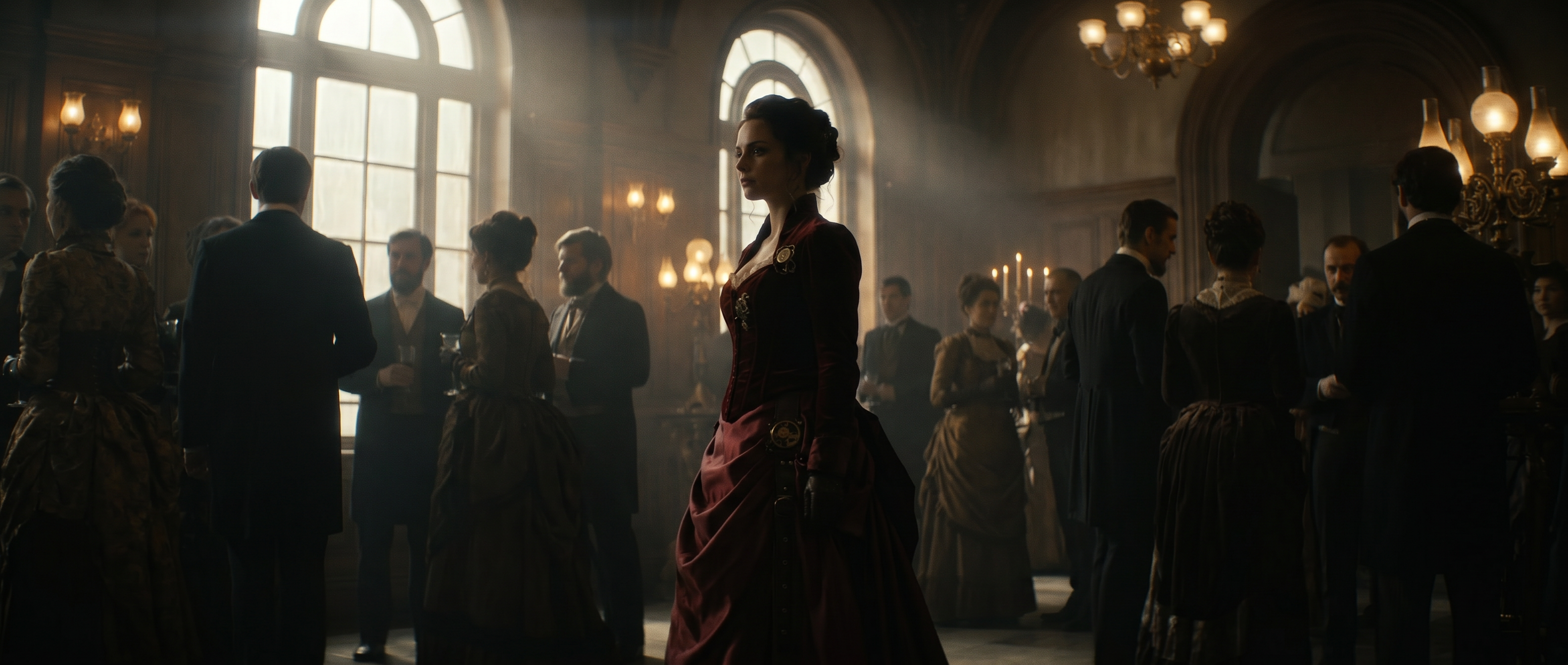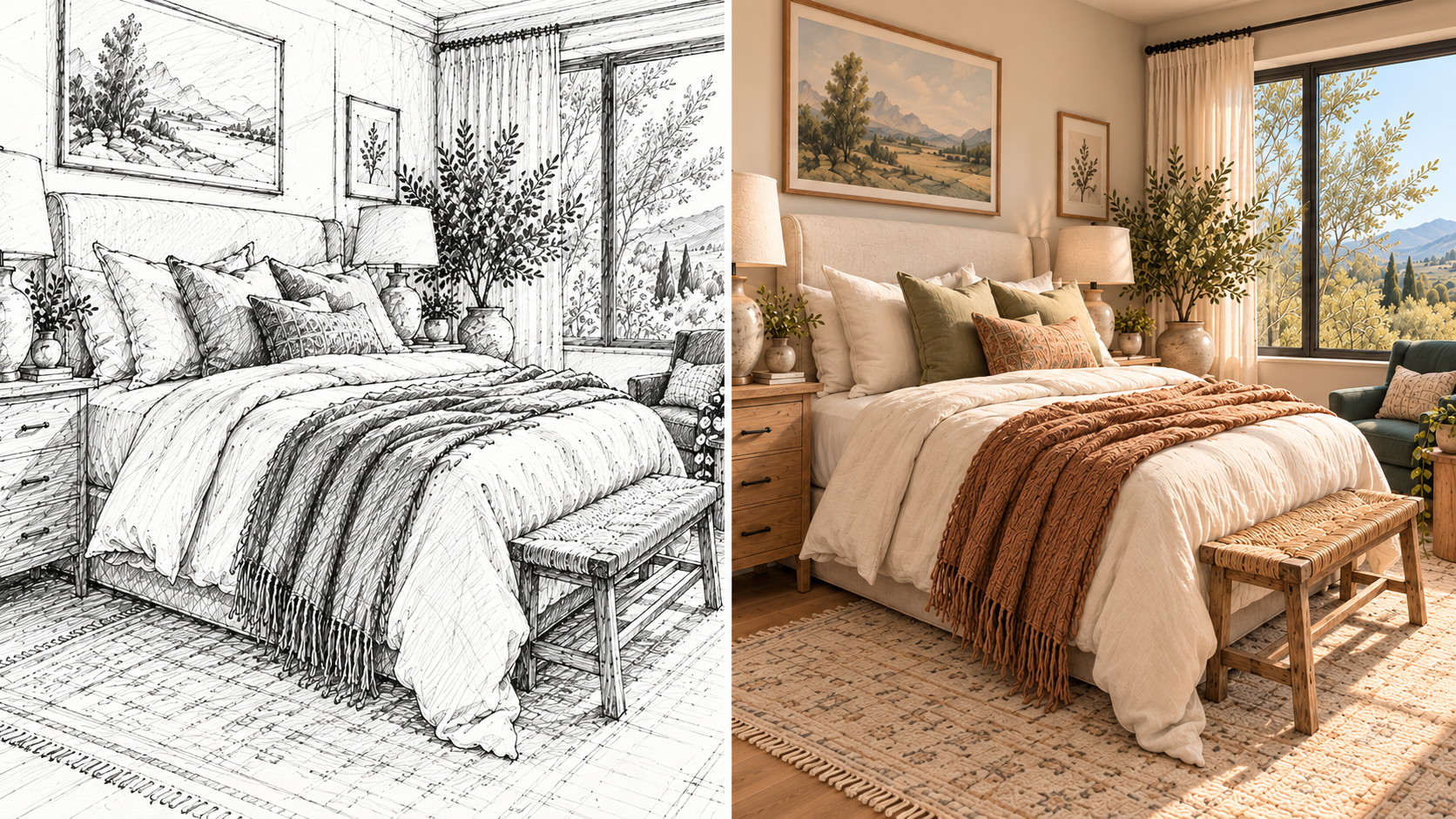
One way to control camera movement in AI video is writing the move (like a dolly, orbit or crash zoom) directly into your prompt. There are four other ways that are worth exploring too, and each is best suited to a different starting point: an idea, a still image, a finished clip or a scene you want to move through.
Looking for the full camera vocabulary? Our guide to AI camera prompts covers the moves, terms and prompt formulas. If your focus is on images, see how to use camera angles in AI generation.
What is AI camera control?
AI camera control (or camera control AI) is any method of telling a video model where the “virtual” camera is positioned and how it moves over the course of a shot. AI camera movements range from prompting a single push-in to steering a camera inside a generated world.
You can write a prompt that describes the movement, set the camera motion with sliders or presets, pin it to frames or a reference, re-render existing footage from a new angle or steer a camera inside a generated world. The same idea applies to AI images, where there’s no movement to direct, but angle, framing and lens still make or break the shot.
The biggest difference between the camera control methods is how much of the motion you fix in place. You might describe the move with a prompt, but the model then has to interpret that prompt. That means two generations of what you wrote (like “slow orbit”) can come out noticeably differently. If you want to generate the same motion multiple times, settings, frames and references are probably the way to go. That’s why they come up whenever a shot has to match something else, like a storyboard, a second take or the shot before it.
AI camera control methods sit on a spectrum
The five methods for AI camera control run from loose, where the model makes a decision based on a description, to locked, where you set the camera’s path or steer it directly.
| Method | You start with | How you steer | What you get | Best when |
|---|---|---|---|---|
| Prompt direction | A text prompt or a still image | Writing out the movement, its speed and its purpose | A new clip with the move interpreted by the model | Feel and intent matter more than the exact path |
| Settings and presets | A still image or keyframe | Sliders for direction and intensity, or a specific preset | A repeatable camera path | The same camera movement has to run across many clips |
| Frames and references | Start and end frames, a reference clip or a 3D comp | Images or footage that pin down framing or motion | A shot that follows the reference | Framing or motion has to match something exactly |
| Re-angling footage | A clip you already have | A description of the new angle | The same scene from a new viewpoint | You like the take but need more coverage |
| Navigable worlds | A world prompt and a first frame | Continuous camera input as the scene generates | An explorable scene you move through | You need to explore a space rather than cut a shot |
Five ways to control camera movement in AI video
1. Prompt direction
Prompt direction is the most flexible method and nearly every video model supports it. You create a prompt with the move and the speed, then tie it to the subject. “Slow push-in on her face as she reads the letter” gives the model a path to follow and a reason for it. Video prompts can also carry a feel, such as “handheld, slightly unsteady.”
When you use the prompting method, the model interprets the camera movement with every new generation. Prompt direction is better suited to shots where intent matters more than exact distance. One camera move per clip gives the most stable results on most models, though newer models like Seedance 2.5 can follow a sequenced move when you describe each stage. The trick is to describe what each stage of the move reveals on-screen, rather than stacking instructions that can confuse the model.
Instead of “push in, crane up and tilt down,” say something like “start low behind the ledge on a lone figure, then rise over the ridge to reveal the canyon below.”
Motion Sketch, an app in Runway, takes prompt direction out of the text box. Instead of describing a move in words, you annotate a still image directly: arrows for where something should travel, outlines for what should appear and short labels for extra guidance. You can mark numbered camera moves, like a crash zoom followed by a whip pan, right on the frame. Like any prompt-based method, the model interprets the annotations, so it suits shots where you want to show the direction rather than lock the exact path. The aim is precise movement without a detailed written prompt.
2. Camera settings and presets
Camera settings and presets use parameters rather than written descriptions. Instead of writing “pan left, slowly,” you set a direction and an intensity, and the camera follows a much more consistent path each time you use those values. Presets name a move or movement style, such as a 360-degree orbit, under one label.
This method lets you repeat a camera move much more reliably, whether across variations of an ad, a product line or the takes you plan to cut together. Settings, presets, reference clips and pinned frames all fix more of the move than a prompt can. Depending on the tool, settings include direction and intensity along axes, including pan, tilt, zoom and roll. Some tools also add lens and aperture options alongside the move.
When you pair settings with a prompt, don’t mix jobs. The setting is in charge of the camera path, while the prompt sets the subject and the mood.
Professional AI camera control often comes down to repeatability: the same move, at the same intensity, on every clip.
3. Frames, references and 3D staging
Reference-based camera control pins the shot to something you provide.
The simplest version of this is keyframes: set a start frame and an end frame, and let the model fill in the camera move between them. It’s the most direct way to guarantee that the shot starts and ends where you want, and that makes a big difference if you’re cutting to another shot.
A reference clip is a video you upload for the model to copy. Some tools copy what the subject does, like a gesture or a dance, but ignore camera movement. Before you rely on a model to match a camera move, test it on a short generation and see whether the move comes through.
3D staging is the most detailed option in this category. You block the subject and camera in a 3D scene, render the framing and hand it to the model as the reference. It’s the most precise form of 3D camera control: an object lands close to the position and angle you set.
In Runway, the Animate Keyframes app creates smooth transitions between keyframes. For 3D staging, Runway’s References takes a location plate, a quick comp of your 3D model placed in that space and a style reference. You can then animate the resulting still via image-to-video prompting.
4. Re-angling existing footage
Sometimes you already have a shot, and the problem is coverage. You have a take you like, but you need a wider or tighter angle without regenerating the scene and risking losing what worked. Re-angling models take your clip and re-render it from a new viewpoint while preserving the scene, the subject and the action.
Aleph 2.0 does this in Runway, and it’s available in both Edit Studio and Runway Agent. In Edit Studio, upload the clip, describe the angle you want (“the same scene from a low angle behind the counter”), preview it and generate. Edit Studio works with clips up to 30 seconds at 1080p, and you can use footage from a real camera or a generated clip as the source. In Agent, describe the angle you want in conversation.
5. Navigable worlds
A world model generates a scene you move through instead of a clip that follows a fixed script. Runway’s GWM Worlds 2, previewed on September 3, 2026, generates interactive worlds in real time: continuous 720p video at 24 fps with generated audio, responding to your inputs as you explore.
You start from a first frame and a prompt that describes the world, then steer it with text actions alongside continuous camera motion. The camera input is a per-frame stream of viewpoint translation and rotation. The model supports first-person and third-person navigation, and you can control the camera and the subject independently.
GWM Worlds 2 is a research preview, and you can learn more by filling out this contact form. The other four methods remain the most practical route for most shots today.
How to choose an AI camera control method
How to control the camera in AI video depends on your starting point, how precise the move has to be and what the shot needs to ultimately match up with:
- Start from your input. If you just have an idea, start with prompt direction. Starting with a still image means you could go for settings, presets, keyframes or drawn annotations. If you have a finished clip, re-angling is usually a faster process than regenerating. If you have a space you want to explore, use a world model where one is available.
- Decide how repeatable you need the move to be. A single hero shot can be created with a prompt. If you need the same move across 20 product variations or several takes, pin it with something other than words: a preset or setting where the tool offers one, a reference clip that carries the move or fixed start and end frames. Reusing the same prompt gets you a similar move, but not an identical one.
- Choose one way to create the move. Decide whether your prompt, a setting or your frames will control the camera, and use the others for everything else. If you pick a preset orbit, write your prompt about the subject and the mood. Where a tool’s preset fixes the move, don’t ask for a different move in the prompt: if you set an orbit and also ask for a push-in, the model gets two conflicting moves and the motion can warp.
- Check what the shot has to match. A shot that cuts directly into another needs a pinned start or end framing, so use keyframes. A shot that has to match a storyboard or 3D layout needs a reference point. For a sequence, plan each move in an AI shot list first, and ensure continuity across cuts by maintaining the same subject, lighting and visual language from start to finish.
- Test short before you commit. Create the camera move on a short generation first. In the first few seconds, you’ll be able to see drift, warping at the frame edges and moves that stall halfway, well before you’ve spent too many credits on a full-length render.
Where Runway fits
Runway brings several of these methods together in its AI video generator. Gen-4.5 takes camera direction through the prompt and generates clips up to 10 seconds, the Animate Keyframes app generates smooth transitions between keyframes, Motion Sketch lets you draw motion onto a still image, References handles 3D staging and the Multi-Shot app builds up to five connected shots from a single prompt. For existing footage, Aleph 2.0 can re-render the clip from a new angle in Edit Studio or Agent. Third-party models in the same workspace fill in other methods. For example, Seedance 2.5 can follow a reference clip and Veo 3.1 can pin the opening and closing frames of a shot.
Other tools each lead with one approach: Kling’s own platform offers camera movement sliders, Higgsfield’s Cinema Studio pairs camera movement presets with lens and aperture settings and Luma offers start and end keyframes. In Runway, prompt direction, frames, references and re-angling sit in one workspace, so you can change methods without changing tools.
Which Runway models and tools support each camera control method?
Most AI video models take camera direction in the prompt. Here is the best way to do each in Runway, with examples of the models and tools that support it, including third-party models available alongside Runway’s own.
| If you need to... | Method | Methods in Runway |
|---|---|---|
| Describe a move and let the model interpret it | Prompt direction | Gen-4.5, Seedance 2.5, Veo 3.1, Kling 3.0 and others |
| Show the move on the image instead of describing it | Prompt direction (annotated) | Motion Sketch |
| Repeat the same move across many clips | Frames and references | Animate Keyframes and Veo 3.1 (pinned frames), Seedance 2.5 (reference clips) |
| Land on exact start and end framing | Frames | Animate Keyframes, Veo 3.1 |
| Place a specific object at a set position | References (3D comp) | References |
| Get a new angle on footage you already shot | Re-angling | Aleph 2.0 (Edit Studio, Agent) |
| Move through a generated space | Navigable worlds | GWM Worlds 2 (research preview) |
Examples only, not a complete list of the models and tools available in Runway.
Frequently asked questions
Can AI change the camera angle of an existing video?
Yes. Video-editing models such as Runway’s Aleph 2.0, available in Edit Studio and Agent, take an existing clip and re-render it from a new viewpoint you describe, preserving the scene, the subject and the action. The source can be real camera footage or a generated clip. Describe the new angle as specifically as you would to a camera operator: position, height and what stays in frame.
Are camera control settings better than camera prompts?
They do different things. Settings and presets fix the camera’s path, so the same move is repeated much more consistently across clips. Prompts convey intent and feel, like handheld texture or a slow reveal, which settings and presets can’t express. Settings, presets, reference clips and pinned frames all fix more of the move than a prompt can. Use them when repeatability is most important and use prompts when some interpretation is acceptable. Never give the two conflicting instructions about the same move.
Why does the camera drift when I asked for a static shot?
Just the phrase “static shot” can be interpreted loosely. Describe the camera as “locked” or “mounted on a tripod,” keep subject motion inside the frame and avoid words that imply movement, such as “following” or “revealing.” If the tool has camera settings and your goal is to prevent or remove unstable camera motion, set movement to zero rather than relying on the prompt alone.
What’s the difference between a dolly and a zoom in AI video?
A dolly moves the camera toward or away from the subject, so perspective and the background shift as it travels. A zoom changes focal length from a fixed position, so the whole image enlarges without any parallax. Put the name of the one you want in the prompt. Combining both moves in opposite directions produces a dolly zoom, where the subject stays the same size while the background appears to stretch or compress behind it.
Which AI video tools have camera controls?
Most AI video tools accept camera direction in the prompt. Beyond that, Kling’s own platform offers camera movement sliders, Higgsfield’s Cinema Studio offers camera movement presets with lens and aperture settings, Luma offers start and end keyframes and Stability AI’s Stable Virtual Camera follows set trajectories from still images (research only, non-commercial license). Runway covers prompt direction, drawn annotations with Motion Sketch, keyframes through the Animate Keyframes app, 3D comps through References and re-angling with Aleph 2.0. Third-party models in the same workspace add more options. For example, Seedance 2.5 follows reference clips and Veo 3.1 pins start and end frames.
Can I control camera speed in AI video?
Yes. In a prompt, pair the camera instruction with a speed word and a sense of duration, such as “slow push-in across the whole shot” or “quick whip pan.” Settings-based tools control speed through an intensity value. The same move also looks slower in a longer clip, so match the duration to your creative vision, whether that’s building up to a dramatic moment or giving a sense of emotional distance.
Does AI camera control work for images?
Partly. A still image has no camera motion, so the movement methods don’t apply, but angle, shot type and lens choice do. You can set them through the prompt, and multi-angle tools can re-render a still from a new viewpoint. In Runway, References can place a character in a location and take prompts for new camera angles like wide shots or medium close-ups.
Can I combine AI camera control methods?
Yes, as long as each method has a different job. Keyframes can lock the start and end of a shot while the prompt can describe how the camera moves between them, and a generated hero shot can get extra coverage through re-angling. What doesn’t work is asking for the same thing using two different methods, because it produces warped, unstable motion.
AI camera control gets easier when you choose the method before the move. Direct the shot in plain language with Gen-4.5, pin its framing with keyframes, or re-angle the take with Aleph 2.0 so every shot in the sequence lands where you originally planned. Get started for free.
Related: AI camera prompts · How to use camera angles in AI generation · Multi-shot AI video generator