What is sketch-to-render AI?
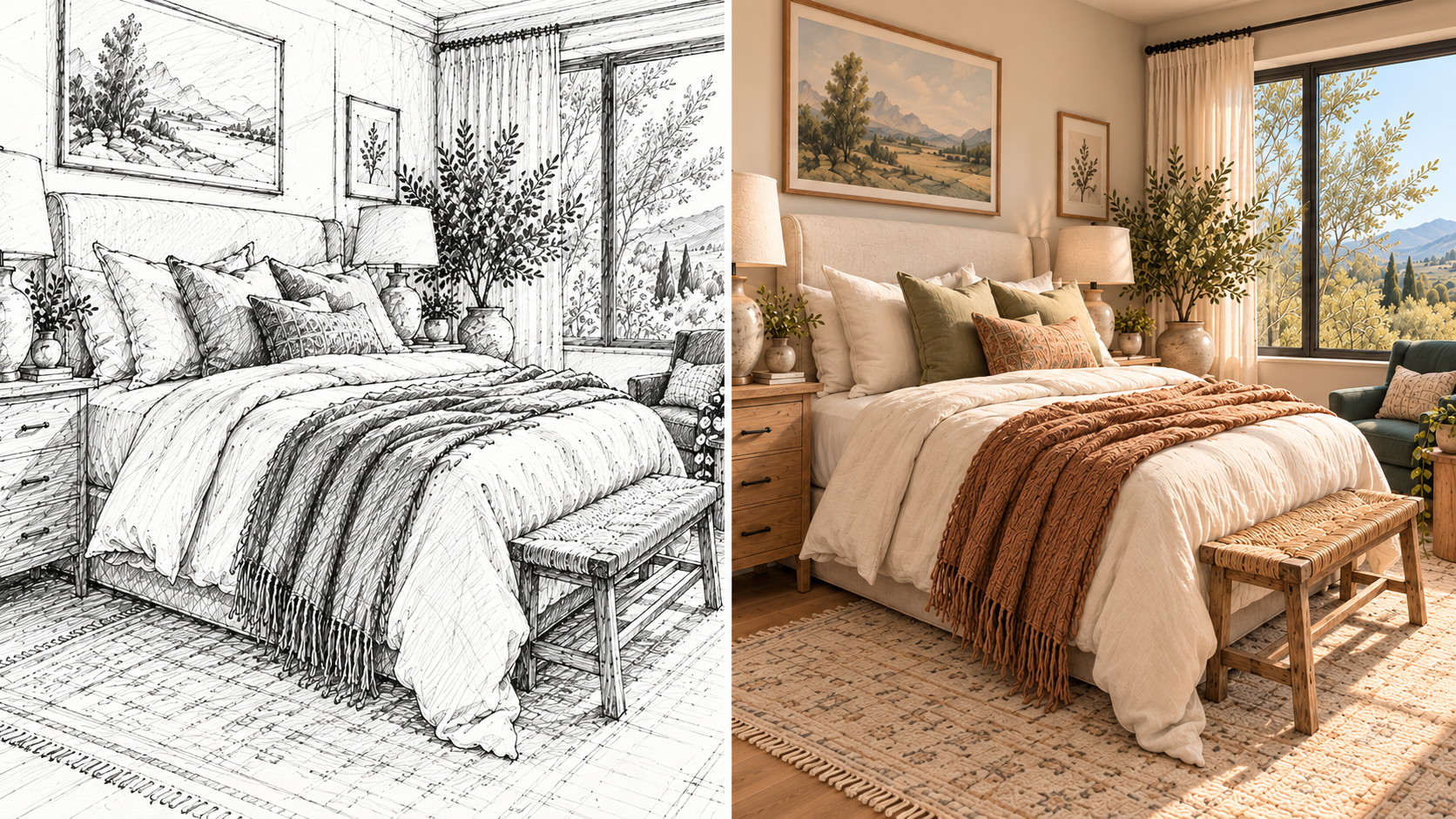
Sketch-to-render AI turns a hand sketch, CAD drawing or 3D model view into a photorealistic image. Your drawing guides the layout, and your prompt supplies materials, light and atmosphere. The tool generates a new image from your drawing; it doesn't trace the lines and color them in.
Most tools include a setting that balances fidelity to your input against freedom to invent. The labels differ, but they describe the same trade-off. At the high-fidelity end, the model follows your lines, composition and proportions as closely as possible, and the output can feel restrained because the model has less room to resolve uncertain forms. At the high-creativity end, the model produces richer materials and a more cinematic image, and it may also move openings, alter massing or replace awkward geometry with a more visually plausible design.
| Label you may see | What it controls | To keep your design |
|---|---|---|
| Precise, balanced or creative modes | A direct choice between fidelity and freedom | Choose precise |
| Creativity or artistry | How much visual invention the model can add | Lower it |
| Similarity, adherence or structure | How closely the output tracks your lines | Raise it |
| Sketch influence | How much the drawing shapes the result against the prompt | Raise it |
In Runway, you steer this trade-off with your reference image and your prompt: the reference carries the layout, and a preservation clause tells the model what must not change. The best balance is the lowest amount of freedom that fills in what your input leaves out while leaving the design decisions intact.
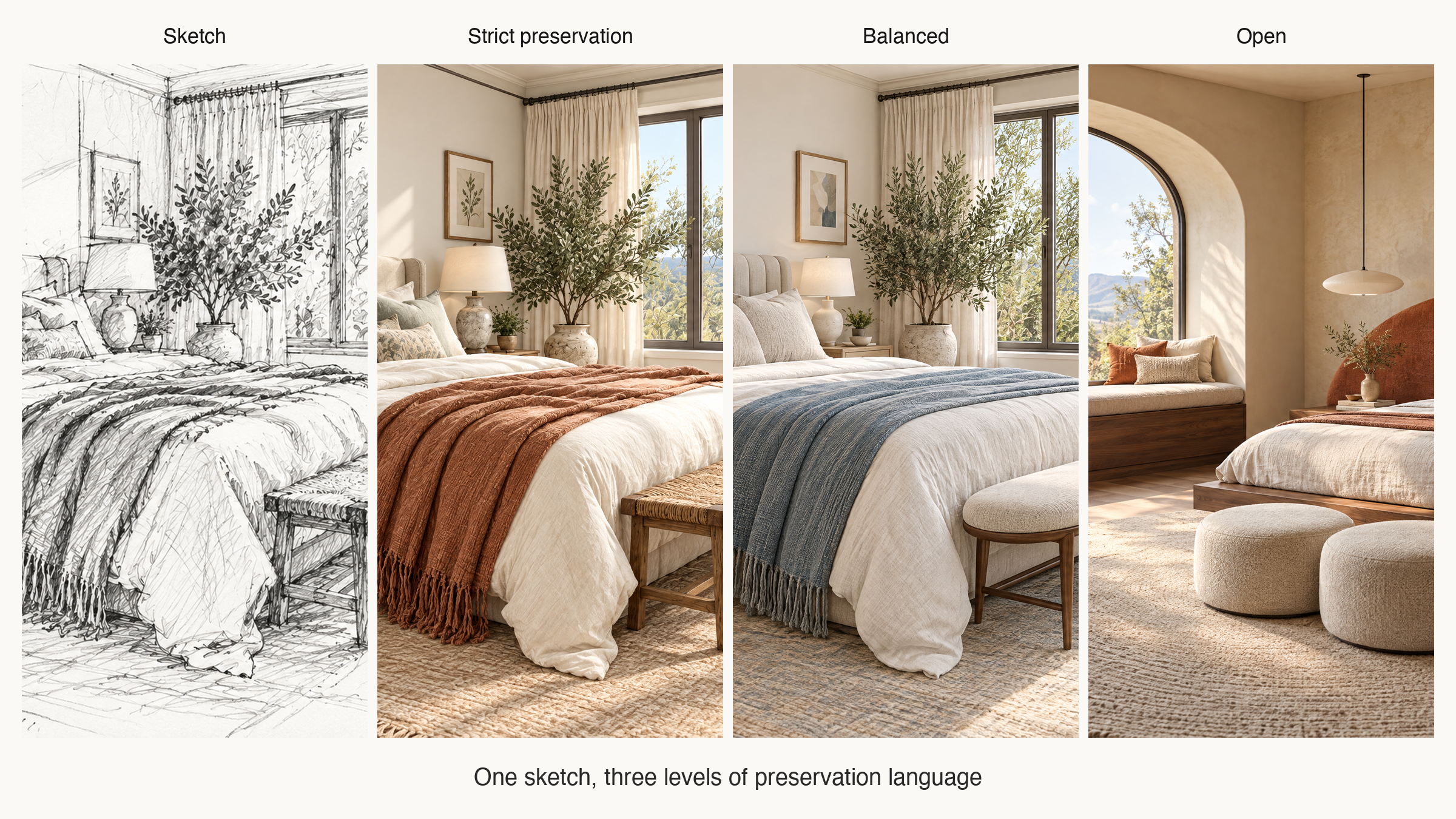
Why does the render look nothing like my drawing?
A render drifts from your drawing because the tool generates a new image instead of tracing yours. Your sketch acts as a spatial guide, and the prompt adds materials, lighting, setting and style.
A 2025 survey in IEEE Transactions on Pattern Analysis and Machine Intelligence describes how current image models, both diffusion and flow-based, are conditioned on inputs beyond text, including sketches, edges, depth maps and reference images. Those inputs constrain the layout of a new image. The survey also notes that precise control means meeting structural and spatial constraints, not reproducing the input pixel for pixel, which is why your drawing steers the render without being copied into it.
A hand sketch leaves details out, so the model has to decide what each line means. A line could be a wall edge, a shadow break or a material joint, and the model resolves it with a plausible guess shaped by its training and your prompt. That is the step where the output can start drifting from your original sketch.
How much freedom should each input get?
Each type of input asks the model to do a different amount of design work.
| Input | What the model must invent | How tightly to constrain it | Common failure |
|---|---|---|---|
| Loose hand sketch | Perspective corrections, depth, material boundaries and many details | Moderately at first, then tighter | The render cleans up the sketch by redesigning it |
| CAD elevation or floor plan | Depth, camera position, material and environment | Tightly, with an explicit view instruction | Orthographic geometry becomes an implausible perspective |
| SketchUp, Revit or Rhino viewport | Primarily materials, lighting, entourage and atmosphere | Tightly | Openings, rooflines or camera position drift even though geometry was supplied |
A loose hand sketch leaves room for interpretation, which suits early concept exploration: constrain it moderately and generate several directions. A CAD elevation or floor plan is stricter but has no perspective, so name the camera you want. A plan also doesn't define the appearance of every surface or elevation. A SketchUp, Revit or Rhino viewport already sets the massing, perspective and camera, so constrain it tightly and ask the model for materials, light and atmosphere only.
How to use sketch to render AI in Runway
Use the AI image generator to upload the drawing to Runway and describe the render, or use image-to-image generation, which takes a reference sketch and transforms it. The steps below apply either way.
1. Prepare the drawing
Use clear, high-contrast lines. Remove notes, construction marks or overlapping alternatives that could be mistaken for geometry. If one feature matters more than the others, make its boundary legible. A perspective sketch usually produces a more coherent render than a flat elevation because it includes the intended camera angle.
2. How detailed does your sketch need to be?
More drawing time doesn't guarantee a better render. In a 2024 first-hand test for The BYU Design Review, Chris Mattson found that longer, more careful sketches did not consistently produce better AI renders.
The sketch should communicate the silhouette, major openings, perspective and important divisions. Extra shading can help describe volume, but dense marks can create ambiguity. A clean five-minute perspective may guide the model better than a detailed drawing filled with competing line weights.
3. Protect what shouldn't change
Start the prompt with what can't change: massing, openings, roofline, camera and composition. The prompt clauses below give the wording.
4. Describe materials and light specifically
Replace broad adjectives such as "luxury" with visual directions you can check: a named stone, a frame color, a time of day, a weather condition. Runway's Relight Scene and Change Image Style apps cover lighting and style changes on an existing image.
5. Start with the tightest constraints
Generate a small batch with the design locked down and keep the image that preserves it best. If every option feels flat, loosen the prompt in small steps, stopping before the geometry drifts.
6. Correct locally
When one window changes or a façade panel disappears, fix that area instead of regenerating the whole image, because regenerating can alter parts that were already right. Upload the render to Runway, mention the area and describe the specific correction, or use the AI photo editor for targeted edits. Masking and inpainting do the same job in other tools.
7. Upscale at the end
An AI render upscaler can improve resolution and texture once the composition is in a good place. Upscale too early and you end up with a finished-looking option that's fundamentally flawed, because upscaling never restores bad geometry.
Prompt clauses that help preserve the design
The prompt and your reference image work together. Use short clauses that each protect one part of the image.
- Geometry: Preserve massing, proportions, roof profile, slab edges and all opening locations.
- Camera: Keep the exact camera height, focal length, horizon and composition from the source image.
- Materials: Apply material changes only. Use honed travertine, charred timber and aged brass without changing geometry.
- Atmosphere: Add golden-hour light, soft interior illumination and light planting while preserving the building and camera. Runway's lighting prompt guide covers this kind of atmosphere-only language in more depth.
- Exclusions: Do not add balconies, columns, windows, doors, furniture or additional floors.
Exclusions are especially useful for repeated failures. If the model keeps adding a balcony, call it out. A clear exclusion often works better than another paragraph of style language.
Try it in Runway. Open Runway Agent with this prompt, attach your sketch and adjust the materials:
Preservation prompt for Runway Agent
Runway AgentRender this sketch as a photorealistic architectural visualization. Preserve the exact building massing, proportions, roofline, window positions, camera angle and composition shown in the source. Apply material and lighting changes only: pale limestone facade, dark bronze window frames, warm oak soffit, soft overcast daylight, restrained planting. Do not add balconies, columns, windows, doors, furniture or additional floors.
Check what the AI added before you share the render
In Chris Mattson's test, the AI struggled with what to do with a center line in one sketch. Architectural outputs can show the same kind of misreading: another window bay, a thicker parapet, an unsupported canopy or a stair that can't fit.
Review the render beside the source at the same size. Check:
- Overall massing and floor count
- Window and door number, size and position
- Roofline, setbacks and façade rhythm
- Camera height, horizon and field of view
- Stairs, rails, columns and structural elements
- Human figures, furniture and planting that affect perceived scale
- Materials that imply a different construction system than your original design
Mark every invented element before the image enters a client presentation. Some additions may be useful ideas, but label them as explorations so they aren't mistaken for fully thought-through design decisions.
How to vary and animate an approved render
Once one frame preserves the design, treat it as the approved base. Save it as a tagged Reference in Runway and call it with @ so every variation starts from the same image. For a coherent material study, keep the source, camera, preservation clause and constraints identical and change only the material clause. That gives you three comparable options instead of three loosely related buildings.
That sequence is the core of AI archviz and AI architecture visualization: lock the structure first, then explore finish. Teams doing AI architecture rendering in Runway can find more workflows on the architecture and design page.
To animate a selected render, ask Runway Agent for a slow orbit, zoom or atmospheric shot. Motion can introduce geometry drift between frames, so keep the movement simple and check edges, openings and material continuity throughout the clip. The AI video prompting guide and the camera angle and shot type guide cover the prompting side.
Frequently asked questions
What is the creativity slider in sketch-to-render tools?
It's the setting that balances fidelity to your drawing against freedom to invent. Tools label it creativity, artistry, similarity, adherence or a choice of precise, balanced and creative modes. Lower creativity or higher similarity keeps your geometry. The opposite gives richer images that can drift from the design.
How do I stop AI from changing my sketch?
Add a preservation clause naming the massing, openings, proportions and camera, and list the features the model shouldn't add. If your tool has a precision or similarity setting, raise it. Generate several options and repair isolated errors with local edits instead of regenerating the whole image.
Can AI render from a CAD elevation or floor plan?
Yes. A CAD elevation or floor plan supplies accurate two-dimensional relationships, but the model still needs instructions about depth, viewpoint, materials and lighting. Expect more interpretation than you would get from a perspective viewport.
Can AI render a SketchUp, Revit or Rhino model?
Yes. Export a clean viewport with the intended camera and visible geometry. Constrain the model tightly and ask for material, light, landscape and entourage changes only.
Can I use an AI render as a construction drawing?
An AI render is a concept and communication image. Dimensions, assemblies, compliance and construction information should come from reviewed CAD, BIM and specification documents.
Why does the render look nothing like my drawing?
The model may have too much freedom for the information in your input. Constrain it more tightly, clarify the lines and state exactly which parts must remain unchanged.
How do I get the same building in three different materials?
Keep the source image, camera, constraints and preservation language fixed. Change one material clause per generation, and begin each variation from the same approved image.
Can I animate a sketch render?
Yes. Approve one still first, then ask Runway Agent for a simple camera move such as a slow orbit. Review every frame for shifted openings, rooflines and materials.
When should I upscale a render?
Upscale after you approve the design and composition. An AI render upscaler adds resolution and surface detail, but it cannot restore geometry that changed during generation.
Start with a single sketch
The best sketch-to-render workflow begins with one question: which parts of this design are decided and which are open for exploration? Draw the decided parts clearly and protect them in the prompt. Then upload your sketch to Runway Agent and render it with the materials and light you want, so your team or client sees the idea sooner while the design stays yours. Get started for free.