


AI video generator
Generate, edit, animate and extend video with the most powerful generative models in one place.
How to use AI for video generation
01
Start from a prompt, image or clip
When generating with AI video, you choose where to start. Start with an image or existing video if you have one, or prompt from scratch if you don’t. Whichever input you choose, Runway will recommend the AI video model best suited for the job.
02
Refine the video as needed
AI video generation is just as much about editing as it is about generating from scratch. With Runway, you can use models like Aleph 2.0 or Apps like Remove from Video and Change Video Backdrop to make precise changes until you’re satisfied with the final result.
03
Extend, upscale and export
Once your video is shaping up the way you want, it’s time to finalize. Extend it to full length, upscale it for the resolution your project needs, and export when it’s ready to go.

Precise editing on real footage
Generation is only the start. With AI video, editing is just as central to the process. With Runway, easily add or remove an object, change the time of day, relight a scene or swap a backdrop — while keeping the rest of your video footage exactly how you like it.

Relight — before/after
Relight a scene
Change lighting, mood and time of day on existing footage.

Backdrop swap — outdoor → studio
Swap backdrop
Replace any background without masking or rotoscoping.

Object removal reel
Add or remove objects
Place, move or erase elements from a real clip with a text prompt.

Stop describing your vision. Show it.
Generate video from text, an image or a clip
With text to video AI generation, your description is the only input you need. Write out the scene — the action, the setting, the mood — and Runway turns it into a clip from scratch.

Bring any image to life with AI animation
Use Runway as an AI animation generator for anything from subtle movement to full-scene action. Give static visuals motion that feels intentional while staying aligned with your creative direction.

Animate characters
Turn a still character into a performance with expressions, gestures and movement.

Animate products
Add motion and camera direction to static product imagery.

Animate entire scenes
Turn concept art and still compositions into moving shots.
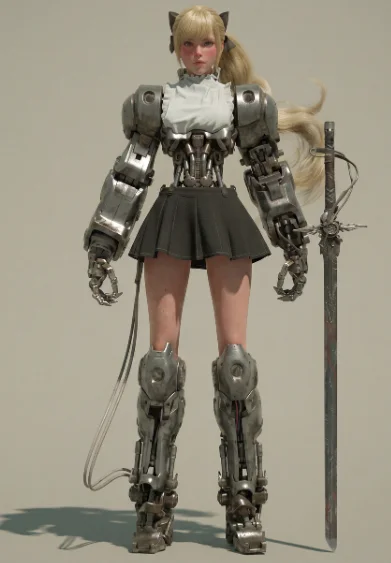
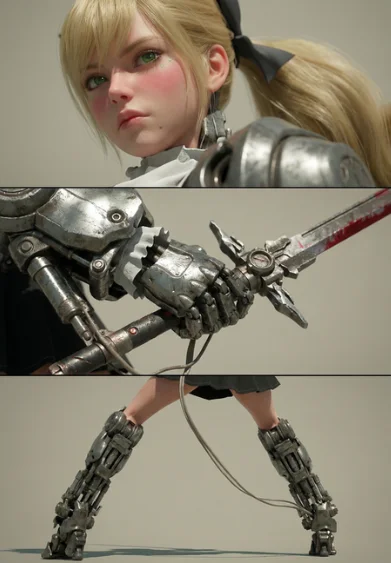
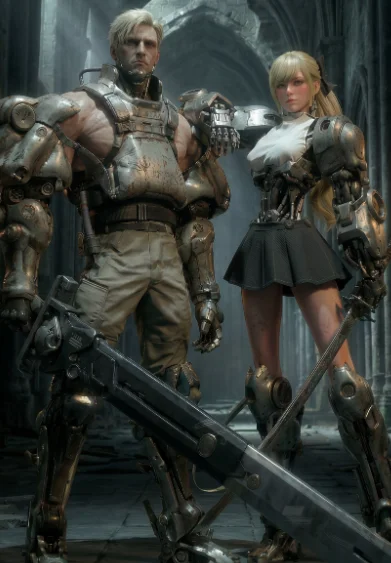
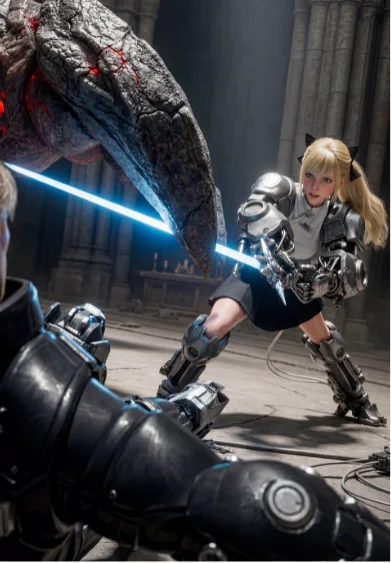
Consistent characters across every shot
Upload an image or video of your character as a reference to maintain that exact character’s look and feel across everything you generate. With references in Runway, the same character shows up in shot two, three and ten without drifting.
Try RunwayAdd dialogue, voiceover or music
AI video with sound, start to finish. Generate dialogue and music during generation on supported models, or add voiceover and music to any clip afterward.
Try the Add Dialogue App
Used in production
Agencies, brands and studios use Runway across real campaigns and productions.
Lionsgate
Explore how Runway and Lionsgate are partnering to put frontier AI in the hands of Hollywood’s filmmakers.
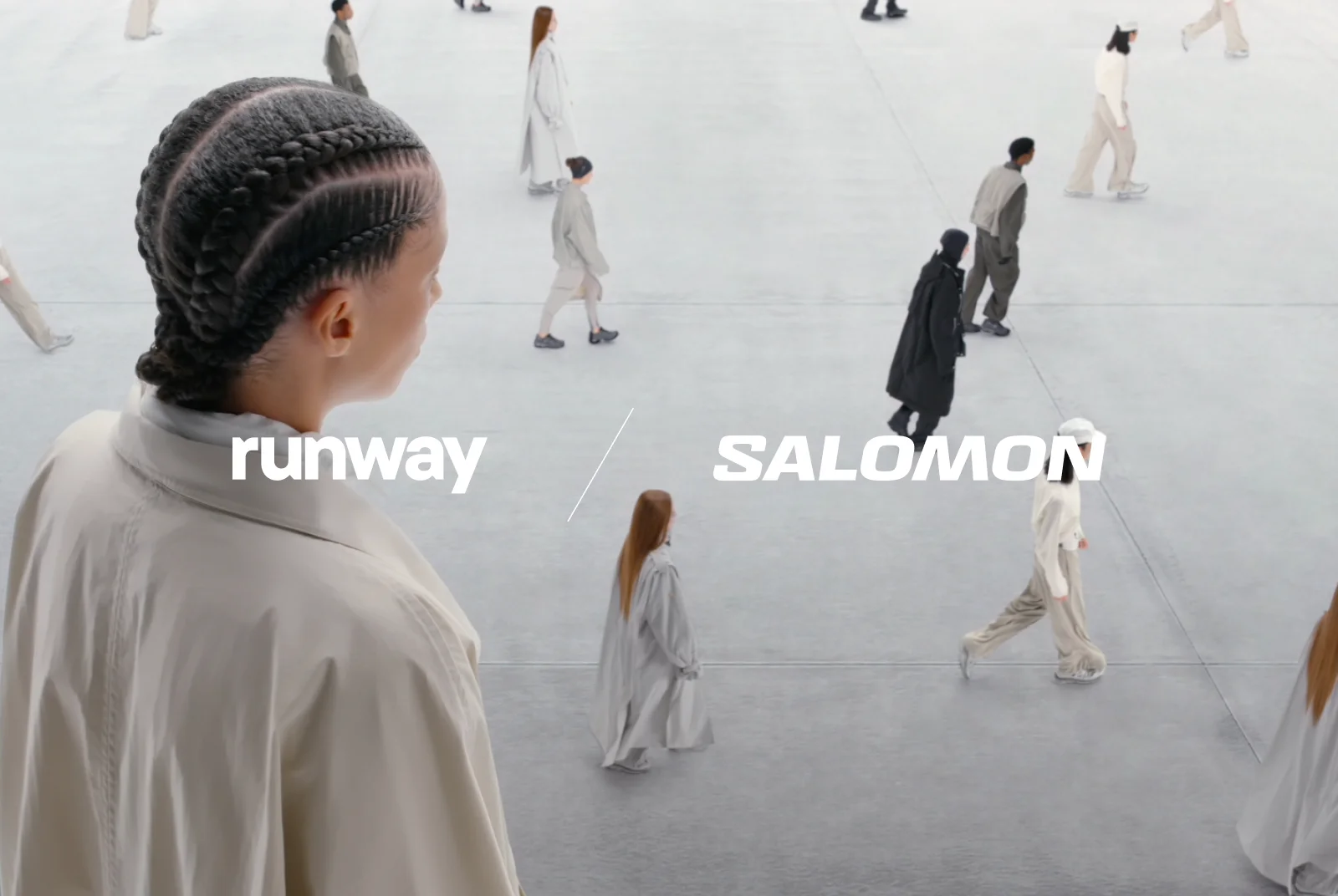
Salomon
See how Salomon used Runway to build its latest global campaign in half the time of a traditional shoot.
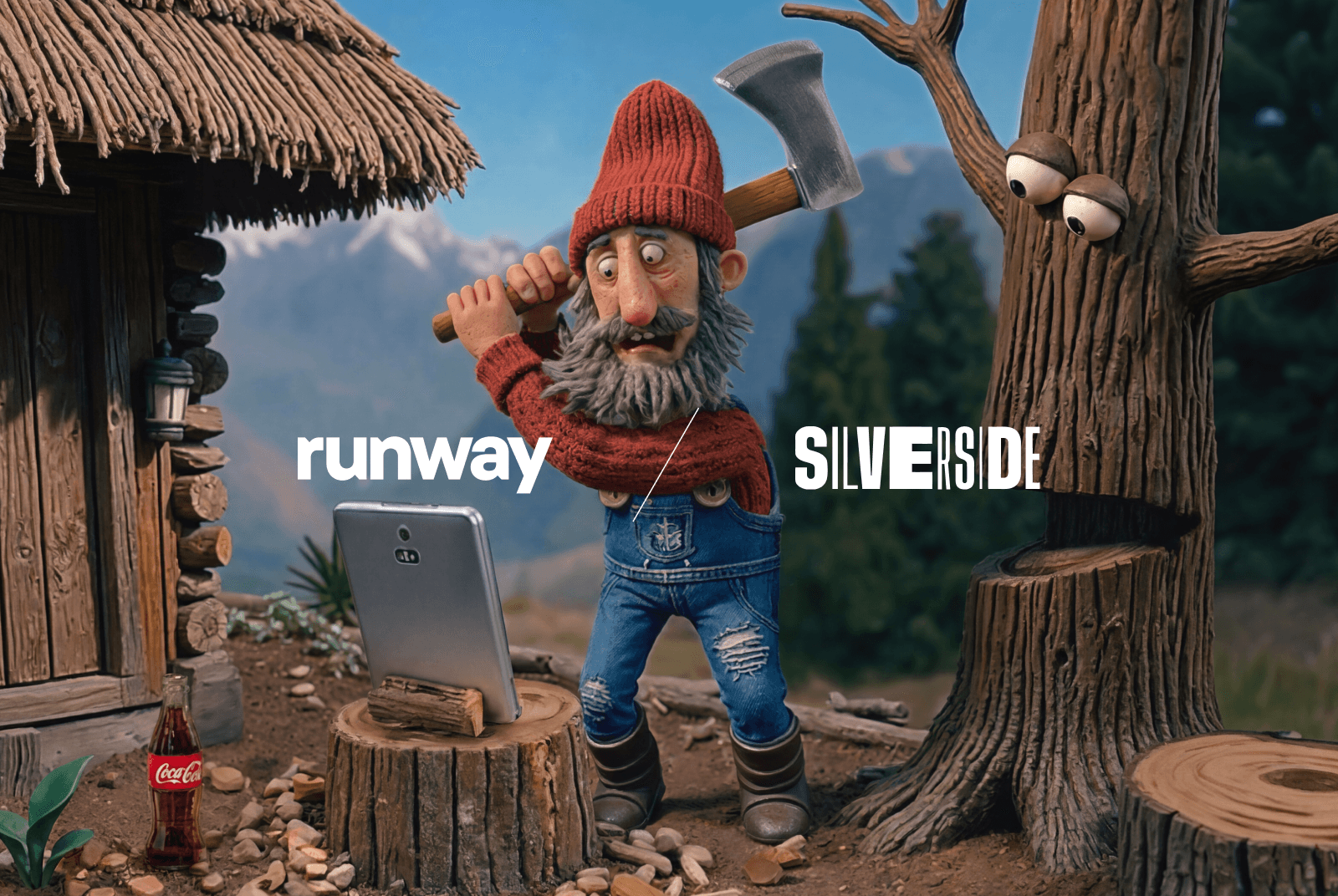
Silverside
Learn how Silverside AI uses Runway to build Coca-Cola’s top-performing ads at 65% lower cost.
All the best AI video models in one place
Generate videos with Runway’s proprietary models and leading third-party models from Google, OpenAI, ByteDance and more. Switch between models to try different looks, motion styles and speeds in one workflow.

Kling O3
Multi-modal video with audio, keyframes and up to 4K output.

Veo 3.1
Google’s cinematic video generation with native audio and speech.

Seedance 2.5
Multi-modal video generation with sound from text, images, video or audio.

Runway Ruby
Runway’s SDR-to-HDR grading model: true HDR masters from any video.
FAQ
- What is an AI video generator?
- An AI video generator creates video from a text prompt, an image or an existing clip. Most models can work with multiple input sources to generate an AI video output. With Runway, you get access to all of the best AI video models in one place.
- What can I make on the Free plan?
- Users can create images and voiceovers, have live conversations with Characters and work with existing video through upscaling and scene building with Runway models. The Free plan includes 125 one-time credits. Each model charges per image, per second or per 6 seconds of conversation with a Character. When generating or editing image and video, Runway shows the total cost before you generate. Credits by model lists every rate, but note, rates are not the total cost of a single generation in some cases.
- Does Runway add a watermark on the Free plan?
- Yes. Images made on the Free plan carry a small Runway watermark. Outputs from Runway’s own models also carry C2PA content credentials on every plan.
- What’s the best AI video generation model?
- The best AI video generation model depends on the clip and style you’re trying to produce — which is why Runway gives you all of the world’s best video models in one place. Use Runway’s first-party models or premier models from other companies, and pick the right one for each shot: some are better at generating sound, some excel at photoreal scenes and others specialize in character performance. Not sure which to use? Runway automatically recommends a model based on your input and use case so you can get generating faster.
- What can I make with an AI video generator?
- You can make any type of video with AI video generation. Use it for short scenes, music video clips, b-roll, ad creative, mood reels, animation, character performances, product reshoots, scene relights and much more.
- Can Runway generate 3D animation?
- Yes. Runway’s AI animation generator creates 2D- and 3D-style animated videos from text or images. Start with a prompt or illustration, then generate character motion, camera movement and full animated scenes. Runway creates rendered video rather than editable 3D models or rigs.
- Which video models can I use on Runway?
- With Runway, you can access all of the best video models in one place. Use Runway’s first-party video models like Gen-4.5 or Aleph 2.0, or choose from other premier video models like Seedance 2.5, Kling 3.0, Veo 3.1 and more. Use all of the best video models in one place, without paying for multiple subscriptions or platforms.
- Can I edit existing footage with AI, not just generate from scratch?
- Yes. AI video generation is great at generating net-new content and editing existing content. Try Aleph 2.0 for precise AI video editing, or get started with Runway Apps for easy shortcuts to change the time of day, swap a backdrop, relight a scene, add or remove an object or change the style of an existing clip.
- How long can the videos be?
- Single generations are short clips. To build a longer sequence, use Extend to stretch a clip and chain multiple generations together with Workflows. To make a long video, stitch multiple generations together, using things like references to maintain consistency across characters and locations.
- Can I use the output commercially?
- Yes. What you create in Runway is yours — you own your work on every plan, including the Free plan.
Make your next video on Runway
Generate, edit and extend with the most powerful AI video generation models in one place. Free to start.