Why flaws stand out in AI-generated images
An AI image generator is essentially making an educated guess. It predicts what an image should look like based on patterns in its training data. It doesn’t construct a scene the way a photographer or a 3D artist would. Most of the time, that prediction produces a convincing image. When it’s not convincing, it tends to be in one of a few pretty common ways. Some mistakes are easy for a viewer to spot but hard for a model to avoid, because they involve complex patterns: hands (including extra fingers), faces, text and the physical relationships between objects. It’s easy to overlook a flaw in a landscape’s cloud formation, but an equally sized flaw in a hand or a human face is unmistakable, often at first glance.
The instinct is usually to write a longer, more detailed prompt to fix the problem, but this can sometimes add more confusion. Instead, you should clearly identify what went wrong and use the specific correction that fixes that particular problem. We’re diving into those fixes below.
Distorted hands, faces or anatomy
Distorted or physically incorrect hands and faces are some of the most visible and memorable failures within AI-generated images. They’re common because a hand isn’t one simple shape, but several jointed fingers that can overlap, curl and interact with an object and each other in dozens of ways. AI tools are guessing at that structure rather than understanding the anatomy. Humans are also very sensitive to small errors in faces specifically, so tiny mismatches we’d never notice in a landscape become obvious the moment it’s a person.
The fix: simplify rather than add detail. Using a prompt that describes one clear pose, like “person standing upright, facing the camera, holding one cup naturally in the right hand,” will likely produce a more reliable result than a prompt that stacks countless details about the same scene. Generating a few variations and picking the strongest works better than seeking one single, perfect result the first time. For a specific, isolated problem, you can also try editing just that part of the image, rather than regenerating the whole thing from scratch.
Objects that don’t make physical sense
This is another common occurrence: a chair with a leg that doesn’t quite connect or a necklace that appears to pass through a shirt. We’ve all seen these nonsensical object placements and formations because the AI model learned which objects tend to appear together in images, not the physical rules governing the real world that the objects appear in.
The fix: describe the relationship between objects, not just a list of what’s in the scene. “A man, a bicycle, a backpack” leaves the spatial structure entirely up to the model’s guessing and pattern recognition. Prompting with “a man standing beside a bicycle, his hand on the handlebars, a backpack worn on his back” gives the tool a visual structure to follow.
Missing or incomplete objects
Missing or incomplete objects show up most frequently with large or full-body subjects, like an animal, a person or a piece of furniture. Ask for a complete animal and sometimes only the front half will render clearly, because the model concentrated on the most visually distinctive features and lost track of creating a full object that would exist in the real world. Ask for a full mammoth and you may get what looks like only its front half.
The fix: state the boundaries of the image and object explicitly. A prompt like “a complete full-body animal, shown from the side, with the entire head, torso, legs and tail visible, fully contained within the frame” gives the model an explicit instruction to maintain, rather than leaving completeness up to chance. This also helps to avoid a result where the subject sits right at the edge of the frame (unless that’s intentional).
Garbled or incorrect text
Text is a structurally different problem from all the others we’ve discussed so far. AI tools need to invent the visual shape of letters and get the exact characters right, in the right order, rather than just approximating what typography generally looks like. Newer models handle short text, like a product name or a headline, far better than older ones, which often produced lettering that resembled words without spelling any. In broadcast television, a misspelled name or a score that doesn’t match the prompt is a dealbreaker, and the World Juggling Federation relies on Runway to get that text right in its footage. Longer, smaller or denser text is still where swapped, missing or invented characters creep in.
The fix: don’t fight the model for exact text. Generate the artwork without worrying about precise wording, then add the actual text afterward in a separate design tool. Generating the visual first and adding exact text later gives you far more control than trying to get a model to spell something correctly in the initial generation. That matters most for logos, signage, packaging and ads, which can’t use garbled or fake text.
The generic “too AI” look
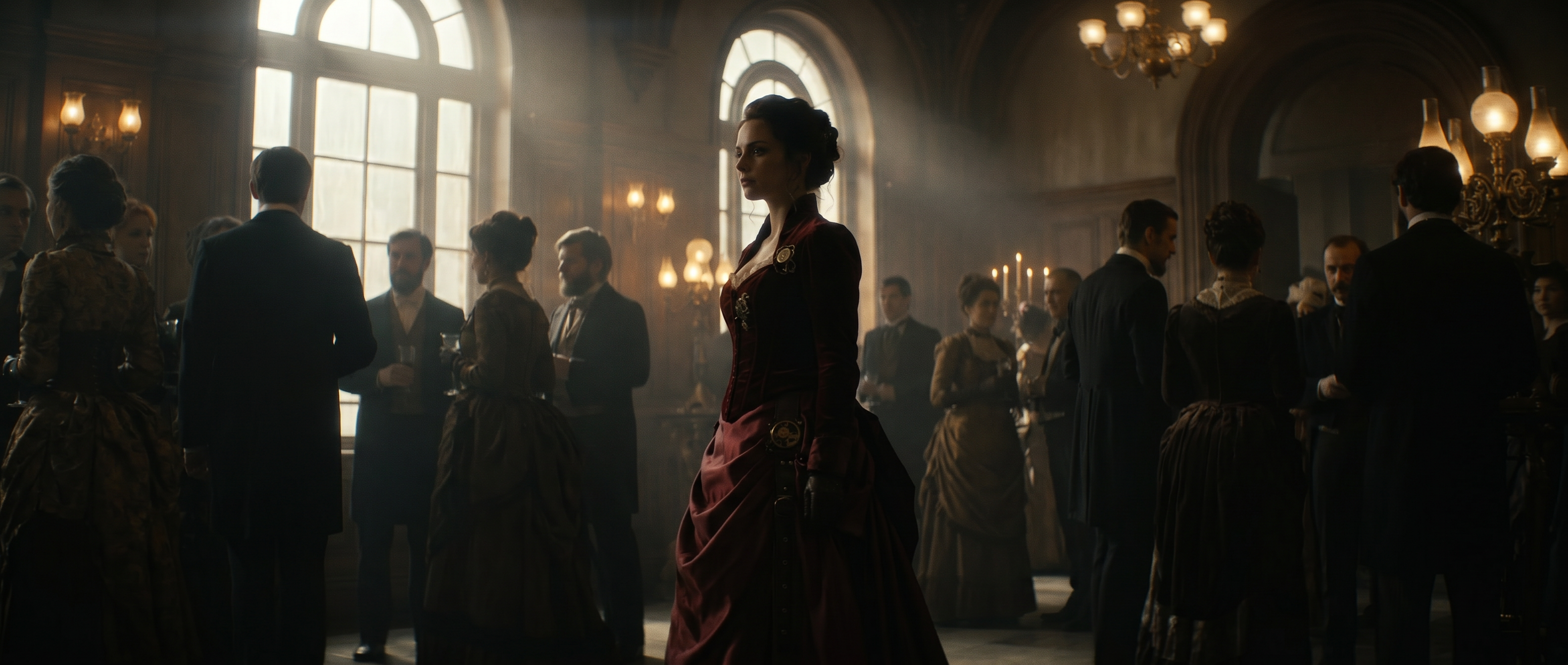
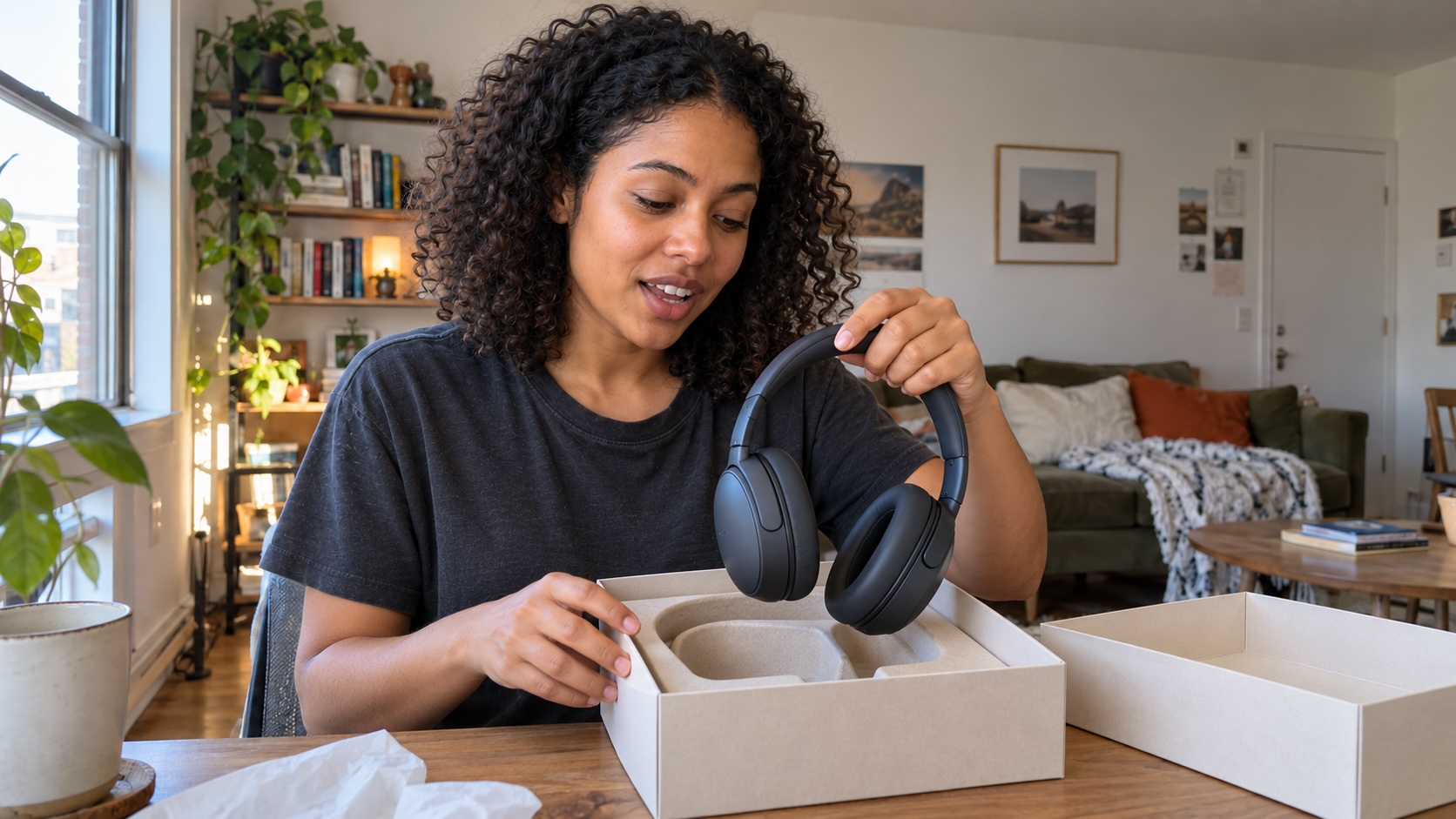
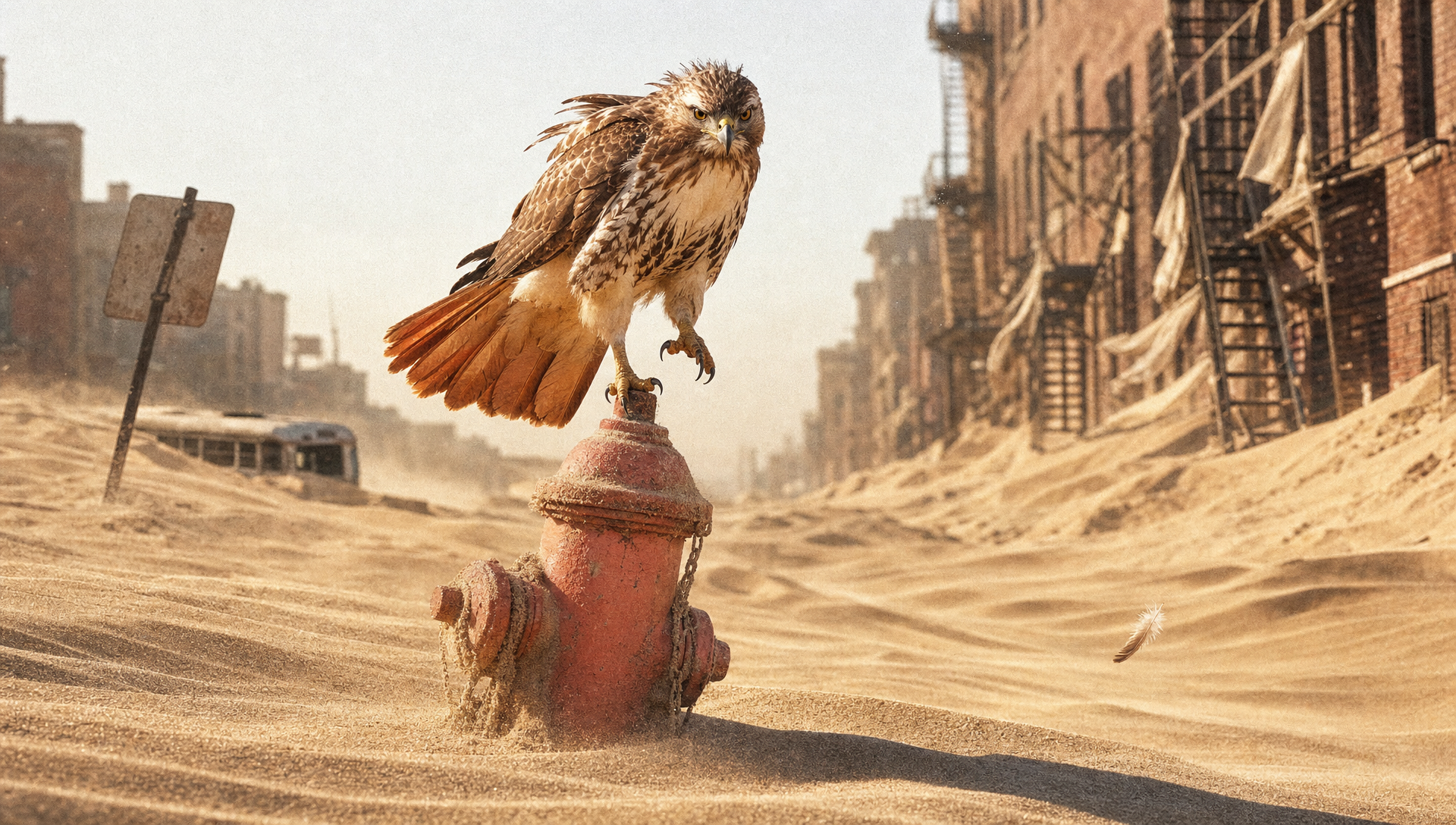
This isn’t a specific error, but there’s often a “tell” for AI-generated images. They might be technically correct but still read as obviously AI-generated because they’re oddly glossy, unrealistically perfect in their lighting or a little too polished. This happens because models tend to produce a generalized, average version of whatever’s requested rather than something with specific character or a unique angle.
The fix: add specific visual context to your description. Words like candid, documentary, imperfect, natural lighting or film photography can help push a result away from the generic that AI defaults to and toward something with texture, specificity and personality.
Inconsistent results between regenerations
One odd but universal experience with AI image generation is putting in the same prompt twice and getting two different results. When you regenerate or edit an image, sometimes small things change that shouldn’t or that were right in the first place, like a face, an outfit or a color. This is often the most frustrating experience, since it means fixing one small issue risks breaking everything else. If you get a good generation with just one detail that needs adjusting, it can feel like you’re starting over from zero.
The fix: edit the image directly instead of regenerating it in the AI model. Describe the specific change rather than starting over, and the AI photo editor changes only what’s described while preserving everything else in the image. That’s a big difference, shifting from “hope the next full regeneration happens to get everything right at once” to “fix this one thing.”
The right workflow avoids most of these challenges
Workflow is the key here. First, get the overall composition of the image roughly correct. Lock down the elements that matter most, like the subject, the pose, the background or the layout. Fix any structural problems with anatomy, missing objects or strange object relationships before worrying about smaller details. Once the structure holds up to the human eye, add fine details. Add exact text later on rather than fighting the model for it. Then, make targeted edits rather than starting over each time something needs to be adjusted.
The mindset shift here is what makes the biggest difference: treat AI image generation as an iterative process, letting go of the idea of a single perfect prompt. Getting 70 to 80% of an image right on the first attempt and then progressively correcting what’s left works better than trying to describe every detail upfront. To learn more about the full process, see how to make AI images in 6 steps.
Frequently asked questions
How do you fix distorted hands or faces in AI images?
Simplify the pose you described in the prompt rather than adding more detail, generate a few variations and pick the strongest, then use targeted editing to fix a specific problem area rather than regenerating the entire image.
How do you get AI to generate readable text?
AI models are much better at short text than they used to be, but longer or denser text can still come out wrong. The most reliable option is to generate the artwork first without focusing on exact wording, then add the actual text afterward in a design tool. This gives you exact control and avoids a misspelled word slipping into the final image.
How do you keep an AI-generated image consistent across edits?
Edit the existing image rather than regenerating it from scratch. Describing a specific change and applying it directly preserves everything that was already working, while a full regeneration can change details that you didn’t want changed in the first place.
How do you make an AI image look less generic?
Add specific visual context rather than using generic descriptions. Descriptive words like candid, documentary, natural lighting or film photography push the final result away from the smooth, overly polished default toward something with more character.
Related resources: What is AI image generation? · How to make AI images in 6 steps